My Open Source Project: pwa Development Notes
Notice:
This is the complete version.
It can support all kinds of complex URL requests, including:
- URL parameters
- Special characters
- Complex request paths
All complex URLs can be recognized correctly.
Running on AlmaLinux, Fedora, and Red Hat are all OK.
Other distributions have not been tested yet.
Based on the GNOME desktop environment.
The previous `pwa-mini` version was the simplest and fastest version.
It was designed for simple applications and quick usage.
This version is different.
`pwa` works together with the desktop GUI application:
`chrome-pwa-desktop-manage`
to manage and launch applications.
Of course, you can also use `pwa` directly to manage applications.
Both methods can work independently.
You can use only commands, or use the GUI.
It depends on your personal preference.
No more talking, let's look at the application screenshots first.
chrome-pwa-desktop-manage GUI Management
Desktop shortcut management tool settings icon screenshot.
pwa command
PWA operation steps screenshot.
The window opened by this version includes the address bar.
This makes it easier to manually control browser functions, such as ad filtering.
The opening speed is almost the same as the mini version.
The difference is basically negligible.
Project Address:
https://github.com/pixel-jey/chrome-pwa-desktop-manage
Clone repository:
The repository contains:
Install:
After installation:
Open GNOME Software and check the installed application list.
You will see:
`chrome PWA Desktop Manager`
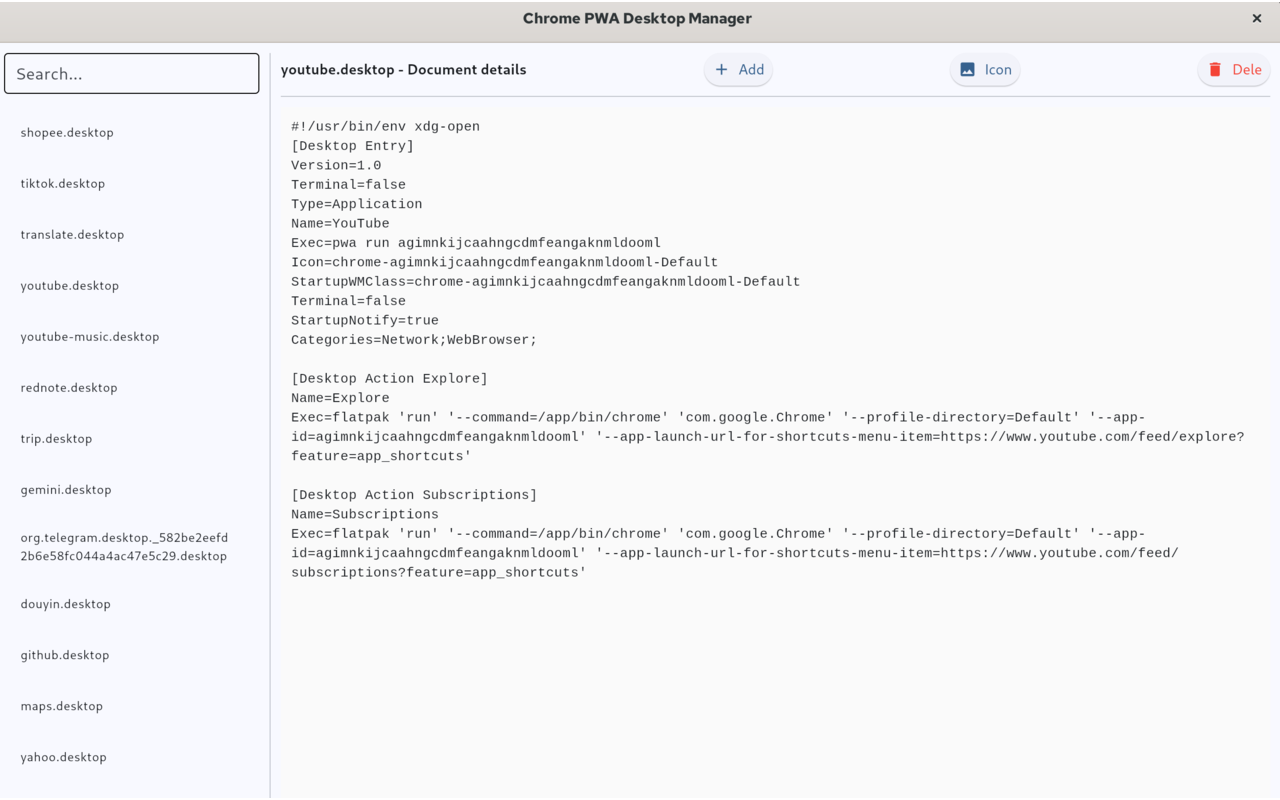
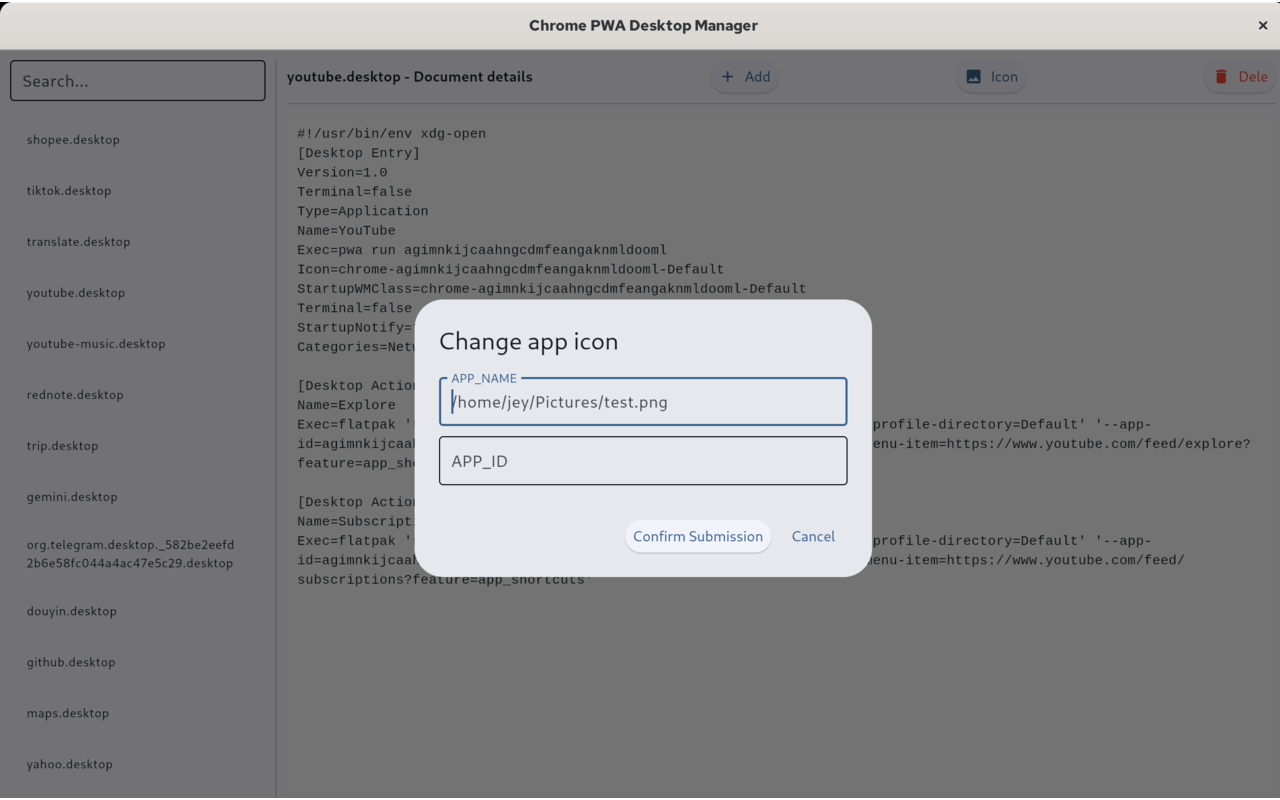
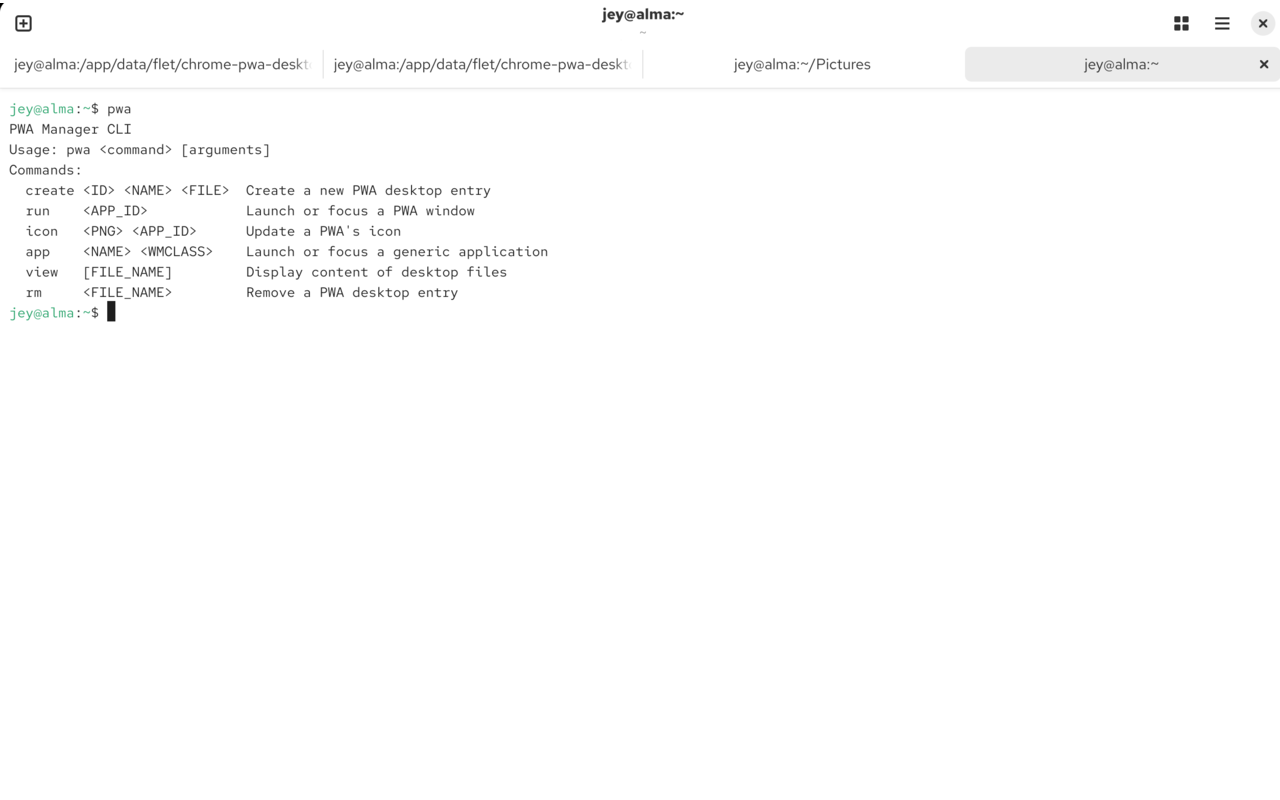
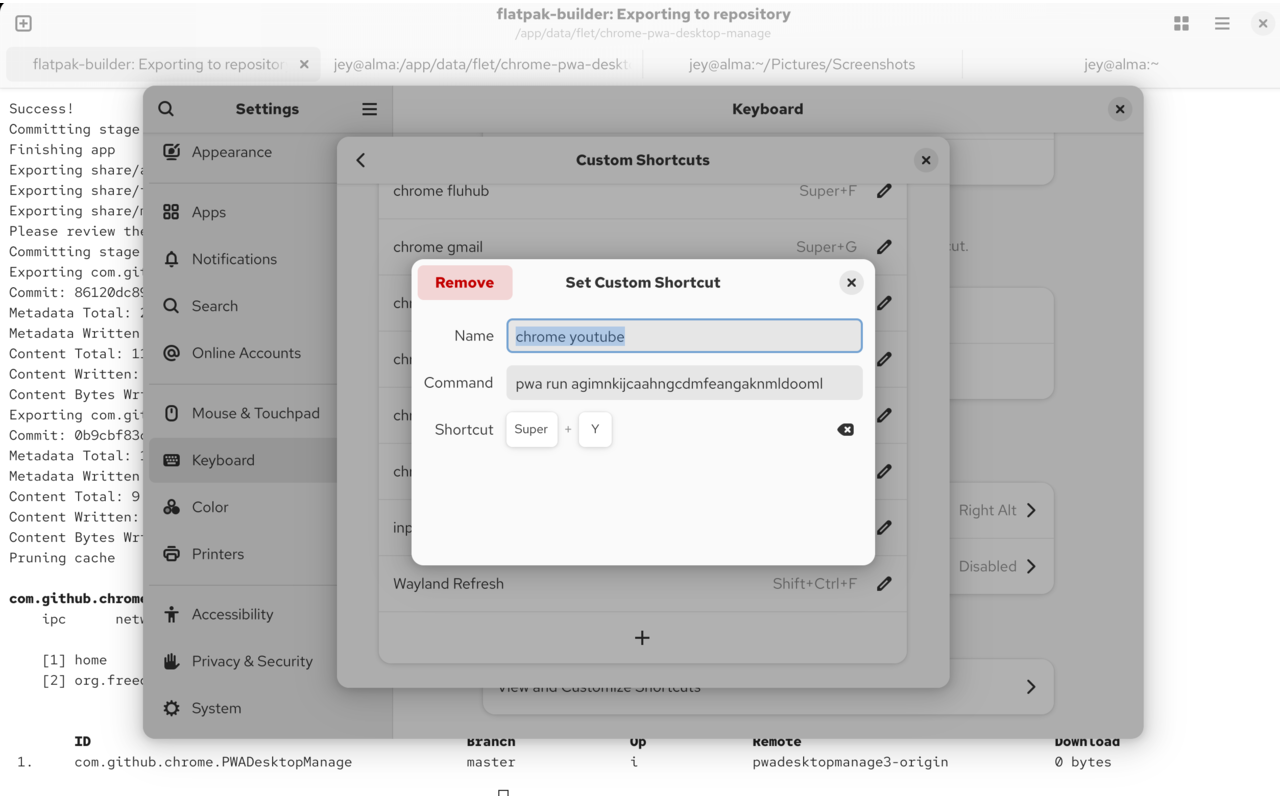
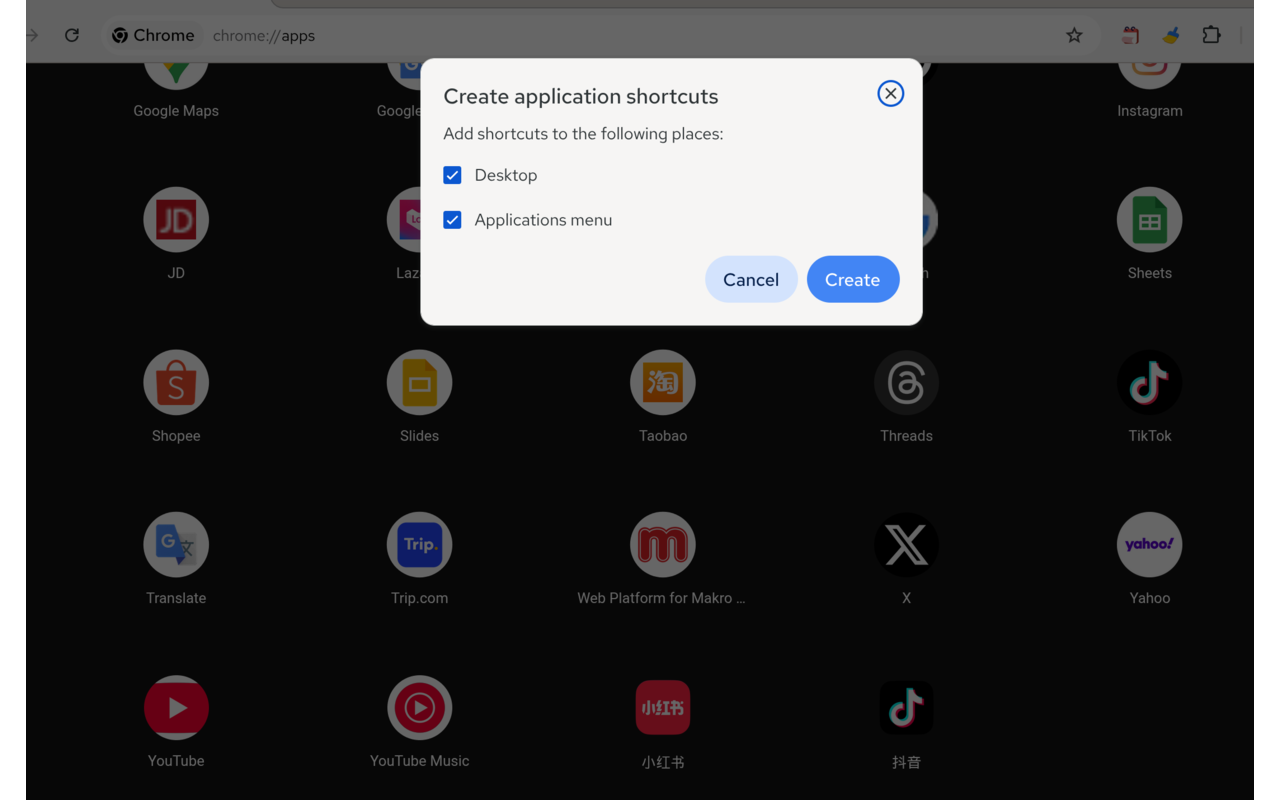
There are detailed screenshots and notes inside.
Following the images and descriptions makes the operation very simple and easy.
how to use:
Run:
Output:
First Install:
Firefox users need to install GNOME extension first:
Used for:
Chrome PWA desktop shortcuts and applications.
It keeps only one application window open.
Chrome RPM Stable version:
If using another Chrome version, create a symbolic link.
Java path:
Changing the Default JDK (Optional)
By default, `chrome-pwa-desktop-manage` launches with the bundled Java path. If you have multiple JDK versions installed, you can manually modify the launcher script to use a different Java runtime.
Open the launcher script:
Example:
Simply replace the Java executable path with your preferred JDK installation. For example, change:
to another installed version such as:
or any custom Java installation path available on your system.
Notice:
1.0 Python
2.0 Java
This project was originally written in Python.
However, after deployment and debugging on Fedora, especially with frequent system updates, I found that the stability was not good enough.
Later, I completely rewrote it using Java.
After changing to Java, the operation became:
- More stable
- Faster
- Smoother
The current version is much more reliable.
Usage Process
The operation is a little more complicated.
First, you need to open the website through Chrome and install the PWA application.
Then run:
You will see many:
This ID is very important.
Commands like:
- create
- run
- icon
all require this ID.
New Commands
Recently, two new commands were added:
pwa-icon
Usage:
This command automatically obtains the PNG icon in:
- 64x64
- 128x128
The icon can also be used later to update application icons.
For better visual experience, you can create your own icon.
Then update it directly using the command.
pwa-one
Usage:
This command combines:
- Application creation
- Icon update
It is recommended to use:
because it is the easiest way.
After creation, it automatically updates the 128x128 PNG icon.
It provides a more convenient complete workflow.
Explore More
› How JComponent and JTextComponent Simplify Swing Development
› My Favorite Android Phones: Why Pixel and Nothing Represent the True Android Experience
› My Favorite Linux Distributions: RHEL, AlmaLinux, and Fedora from a Developer's Perspective
› pwa-mini: A Lightweight PWA Manager for Linux GNOME Desktop
› Chang vs Leo vs Singha: My Personal Experience with Thailand's Most Popular Beers
› Why I'll Never Buy an Airport SIM Card Again: My eSIM Journey Across Southeast Asia
› My First Week Living in Bangkok: Excitement, Confusion, and Lessons I Didn't Expect
› My First Condo in Bangkok: How It Was Completely Different From the One I Had in the Philippines