Complete Guide to Linux Boot Autostart: Systemd vs. rc.local vs. Crontab (And How to Fix rc-local.service Failed)
Introduction
Configuring custom scripts or commands to run automatically on system boot is a fundamental task in Linux administration. Whether you need to spin up a manually compiled Nginx instance, trigger a backup script, or initialize a specific environment variable, Linux offers multiple ways to achieve this.
However, moving from configuration to a successfully running service often comes with hidden traps, such as permission blocks and port conflicts.
In this comprehensive guide, we will walk through the fastest method using /etc/rc.local on a modern enterprise Linux system (like AlmaLinux, Rocky Linux, or CentOS), analyze real-world troubleshooting scenarios, and deep dive into the architectural differences between rc.local, Systemd Services, and Crontab @reboot.
1. Quick Start: Configuring Autostart via /etc/rc.local
For running a few straightforward shell commands consecutively, using the built-in /etc/rc.local compatibility script is often the most direct path. It acts as an "autostart notepad" executed with root privileges at the final stage of the boot sequence.
Let's configure a custom path Nginx binary (/usr/local/nginx/sbin/nginx) to start on boot:
Step 1: Edit the Configuration File
Open /etc/rc.local using your preferred text editor:
sudo vim /etc/rc.local
Append your custom commands to the bottom of the file. Ensure it includes a proper shebang line if the file is empty:
#!/bin/bash
Your custom startup commands
/usr/local/nginx/sbin/nginx
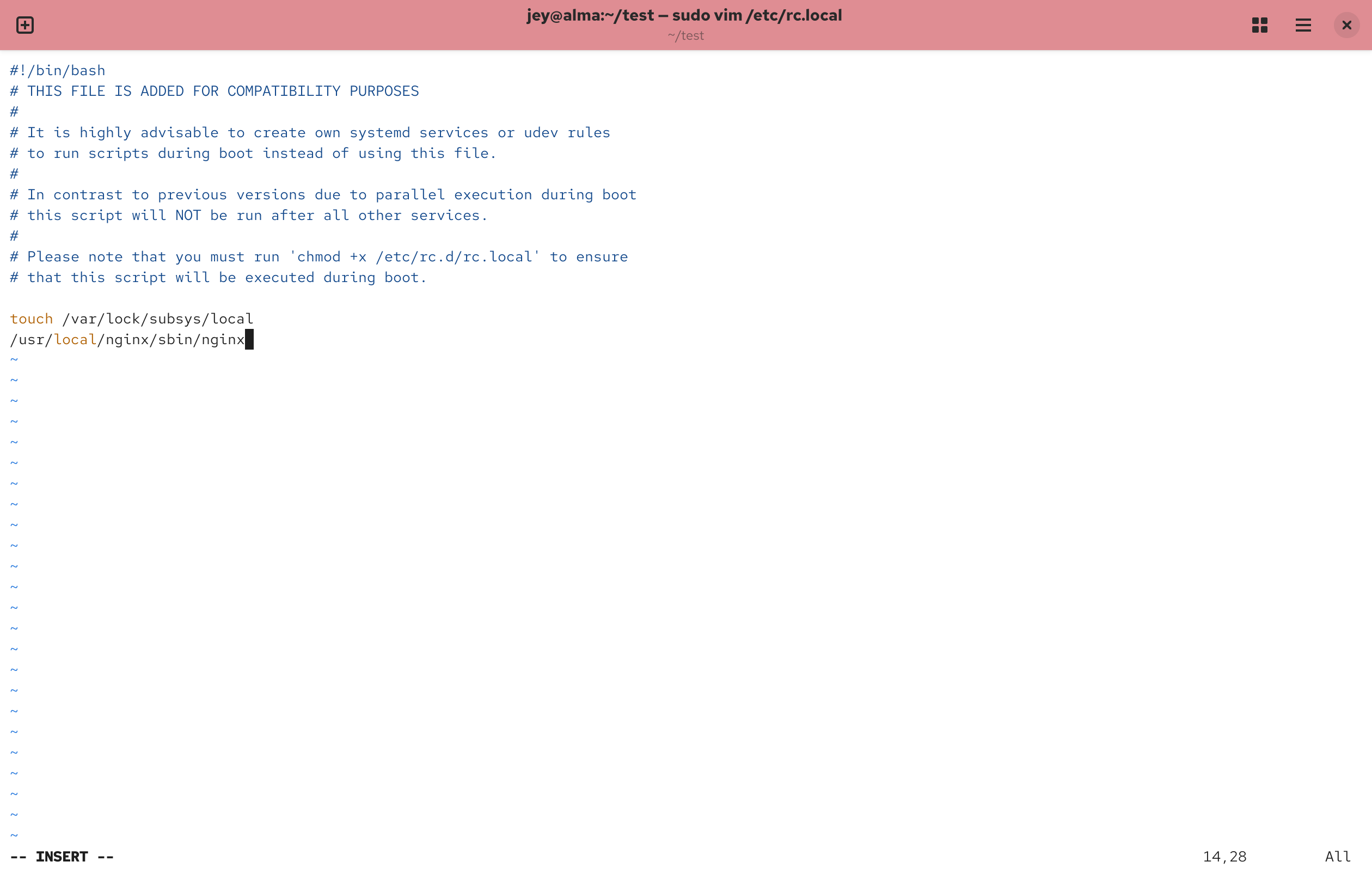
Save and exit (In Vim, press Esc, type :wq, and hit Enter).
Step 2: Grant Executable Permissions (Crucial Step ⚠️)
On modern Enterprise Linux distributions (RHEL-based systems like AlmaLinux), /etc/rc.local is merely a symlink. The actual physical file resides at /etc/rc.d/rc.local. By default, security policies strip this file of its executable permissions, causing the system to ignore it during boot.
You must manually activate it by running:
2. Real-World Troubleshooting & Debugging
After setting everything up, you should verify if the script successfully ran by querying the status of the underlying compatibility service:
sudo systemctl status rc-local
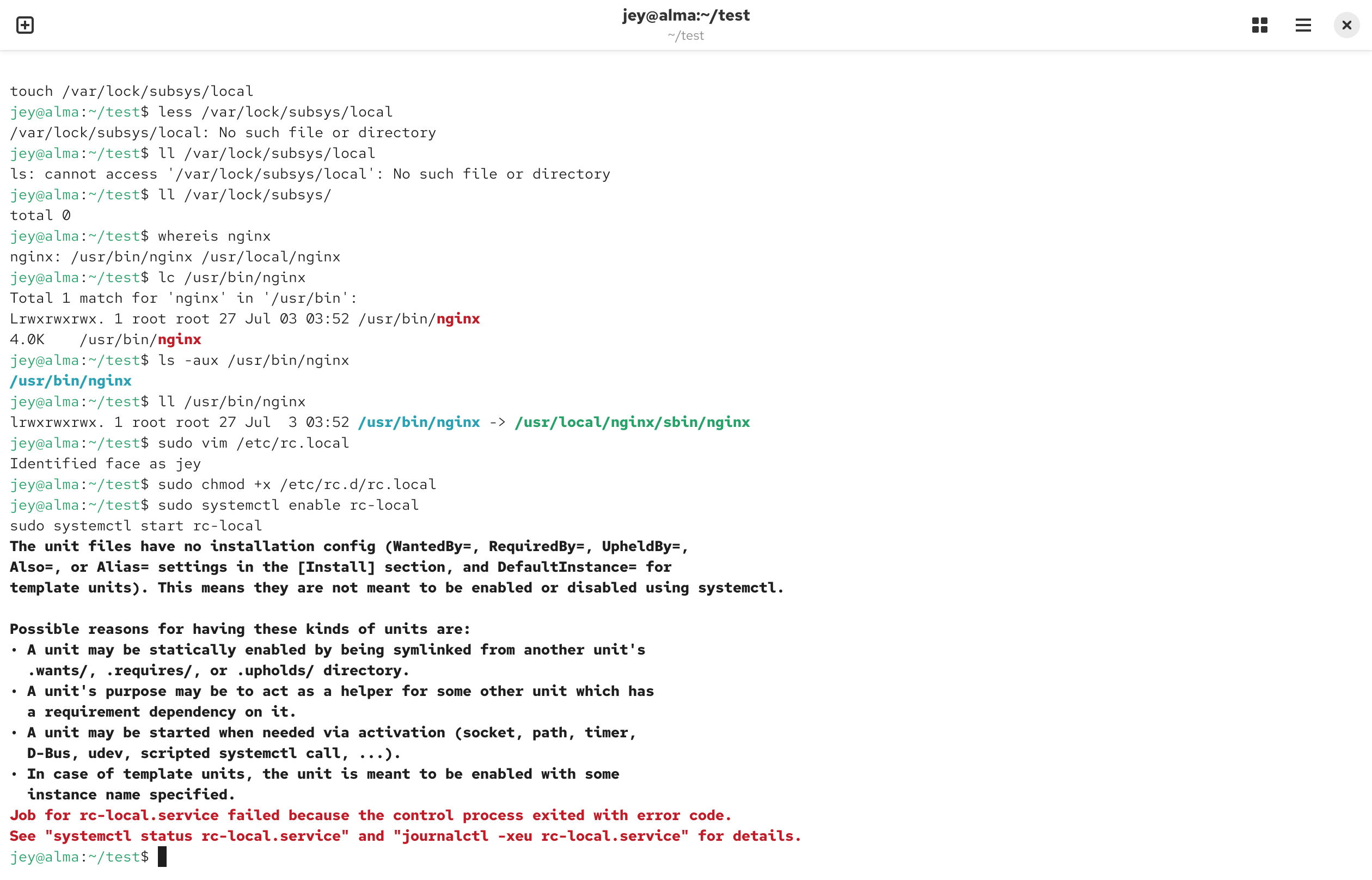
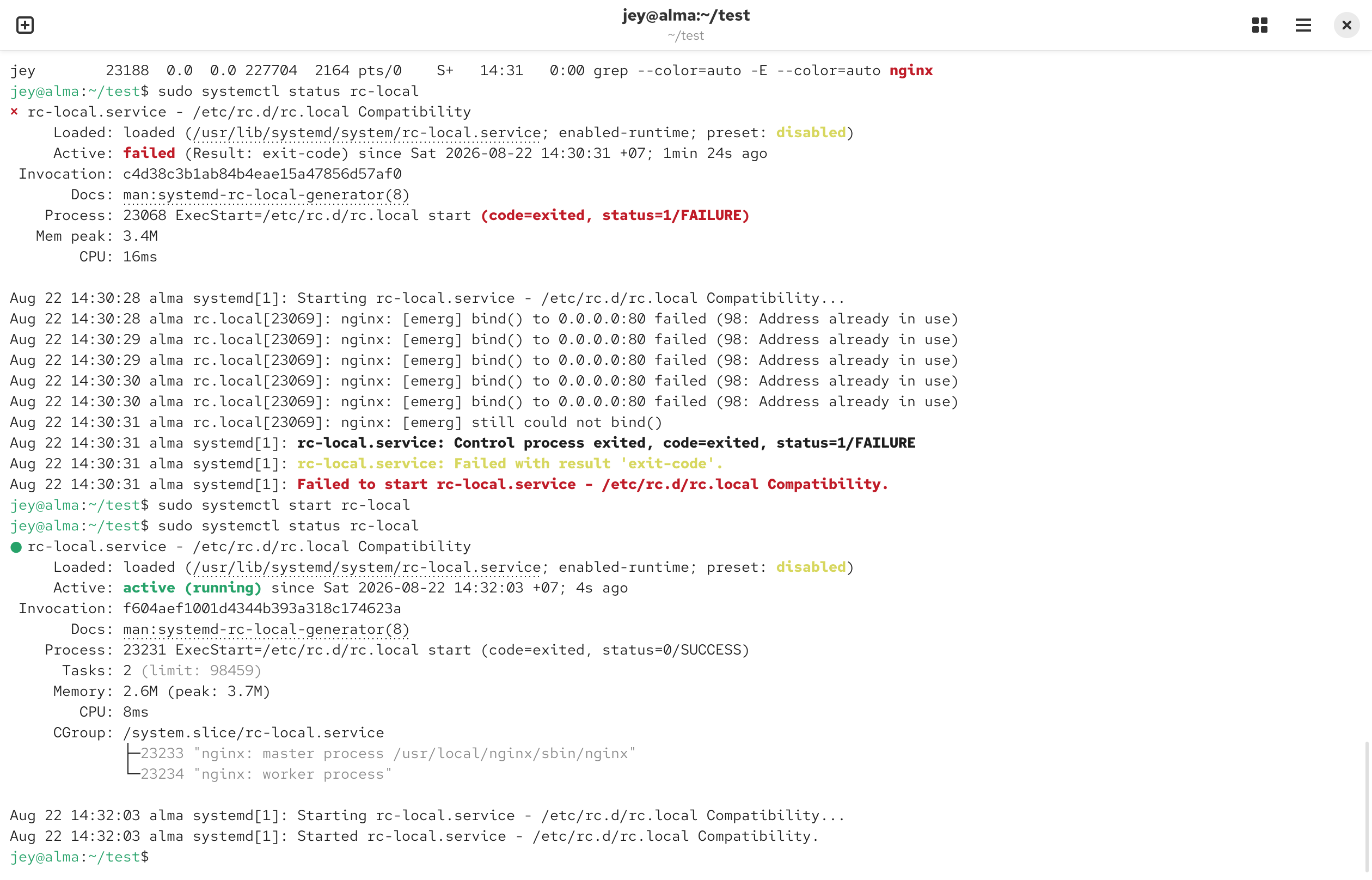
If your configuration encounters issues, you will likely see a red Active: failed (Result: exit-code) indicator. Here are the two most common pitfalls and how to solve them.
Pitfall 1: Breaking on Legacy or Non-Existent Commands
The Symptom:
The status shows a failure during execution, reporting status=1/FAILURE.
Process: 23068 ExecStart=/etc/rc.d/rc.local start (code=exited, status=1/FAILURE)
Looking closer at the logs, you might spot an error like No such file or directory triggered by a command like touch /var/lock/subsys/local.
The Root Cause:
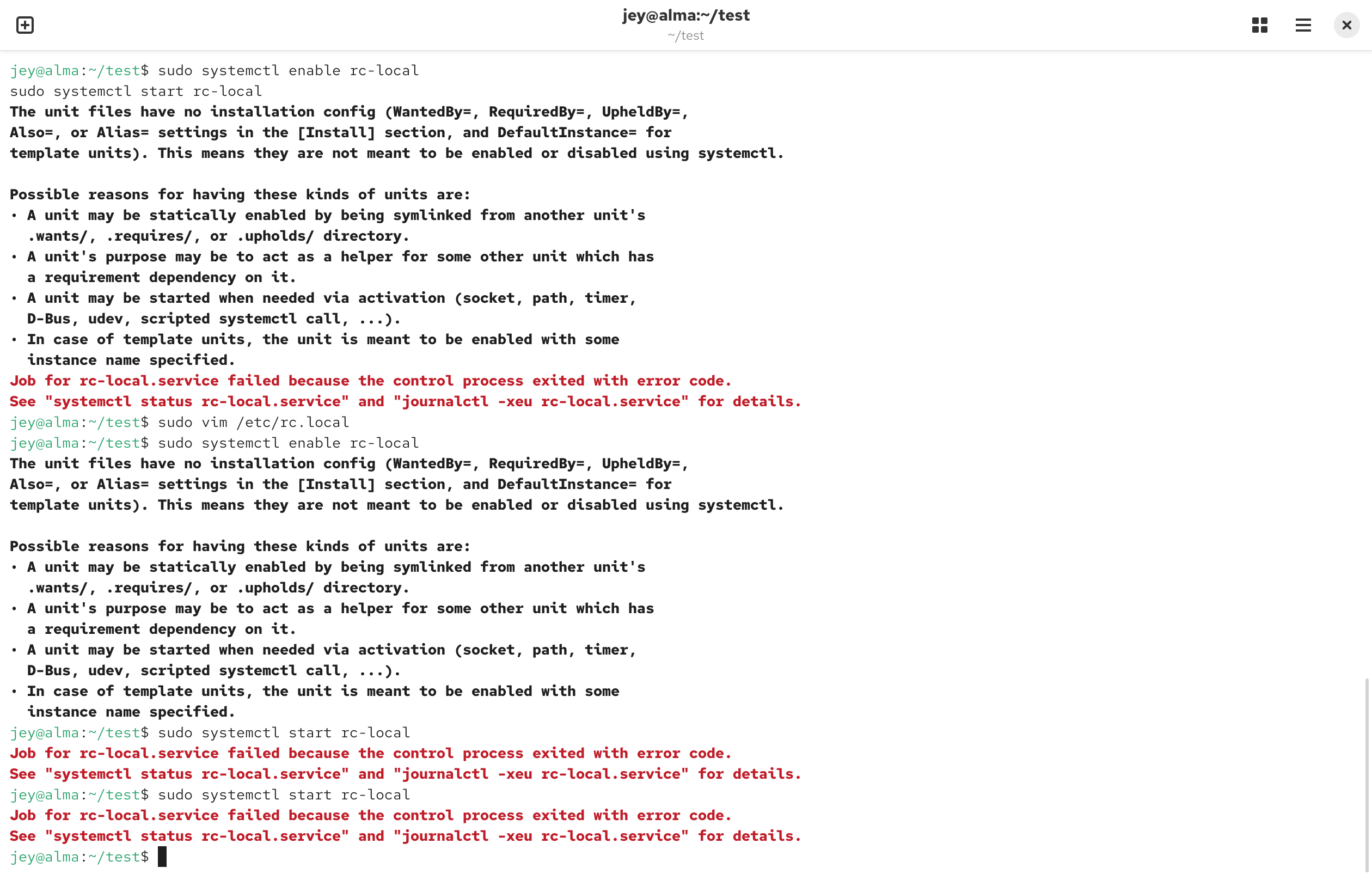
Older Linux distributions frequently included touch /var/lock/subsys/local at the beginning of rc.local to track subsystems. However, in many modern, minimal cloud images, the /var/lock/subsys/ directory does not exist. When the shell hits this non-existent path, the script errors out and terminates instantly, preventing subsequent lines (like your Nginx command) from running.
The Solution:
Re-open /etc/rc.local and comment out or remove any legacy or missing commands:
#!/bin/bash
Comment out non-existent paths# touch /var/lock/subsys/local
Keep only the valid working command
/usr/local/nginx/sbin/nginx
Pitfall 2: Port Conflict Leading to a Persistent Red Status
The Symptom:
The script logic is perfect, but manually executing sudo systemctl start rc-local throws an error:
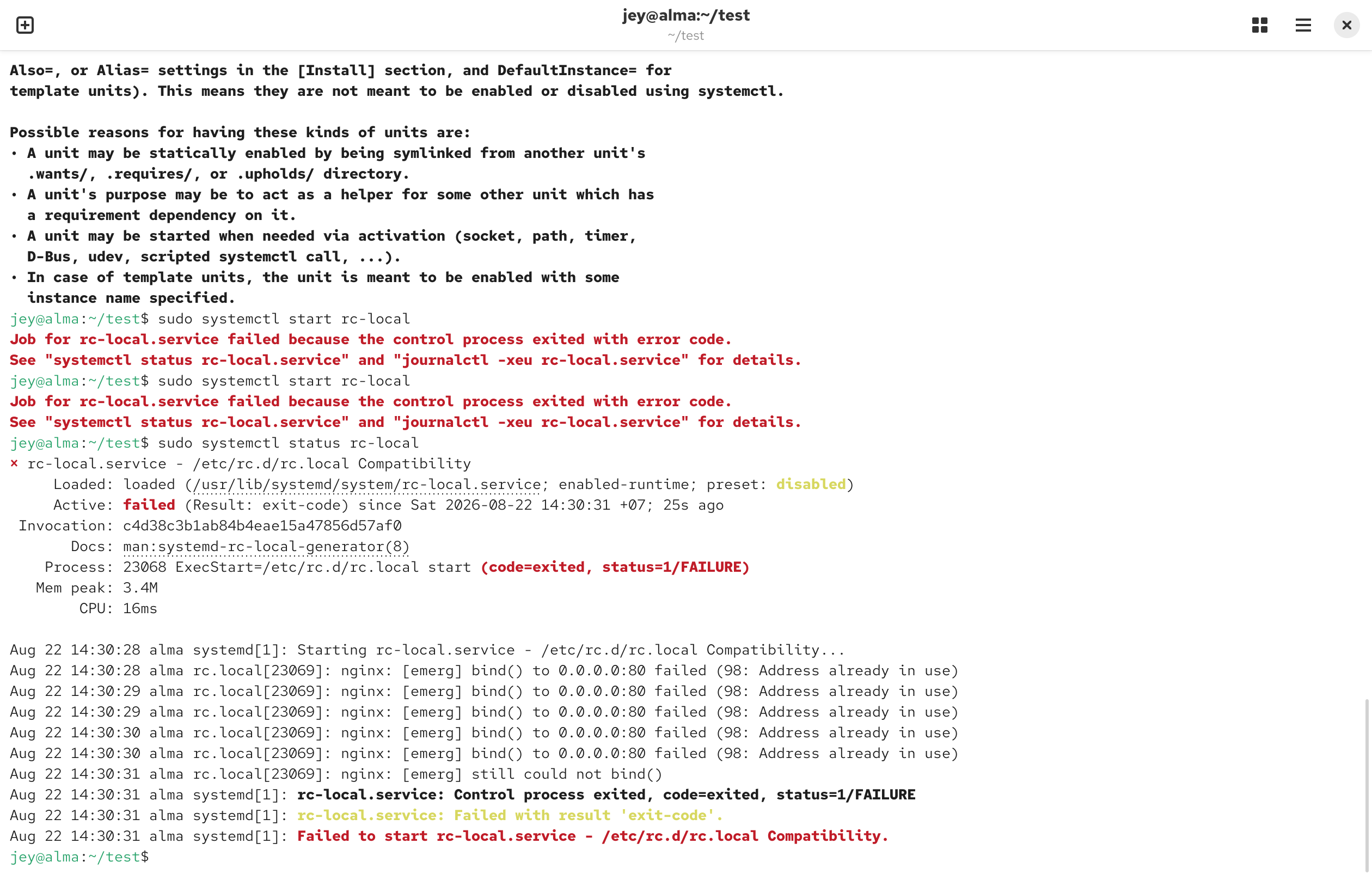
nginx: [emerg] bind() to 0.0.0.0:80 failed (98: Address already in use)
rc-local.service: Control process exited, code=exited, status=1/FAILURE
The Root Cause:
This indicates your target application (e.g., Nginx) is already running in the background and binding to port 80. When you manually invoke rc-local, Systemd triggers the script again. Nginx fails to bind to the occupied port, returns an error exit code, and consequently forces the entire rc-local.service into a failed state. This means your autostart configuration is actually fine; it is simply experiencing a runtime conflict.
The Solution:
- Clear out the currently running instances to free up the port:
sudo pkill nginx
- Allow the rc-local script to take clean control:
- Check the status again. You should see a green active (running) marker, and the CGroup tree will cleanly display your master and worker processes:
3. Deep Dive: rc.local vs. Systemd Services vs. Crontab @reboot
While all three methods can execute tasks at boot, they operate under entirely different subsystems, privilege layers, and execution timelines.
| Evaluation Dimension | Method 1: /etc/rc.local Script | Method 2: Systemd Service (.service) | Method 3: Crontab (@reboot) |
|---|---|---|---|
| Complexity | 🟢 Very Simple (Plain Shell commands) | 🟡 Moderate (Requires strict INI syntax) | 🟢 Very Simple (Single-line expression) |
| Execution Timing | At the very end of boot sequence | Fully Customizable (After=, Before=) | When the Cron daemon initializes (Very early) |
| Privilege Level | Strictly root | Customizable (User=nginx or User=root) | Bound to the owner of the crontab file |
| Process Supervision | ❌ None (No auto-restart if app crashes) | ⚙️ Robust (Restart=on-failure handles crashes) | ❌ None (Triggers once and detaches) |
| Dependency Management | ❌ Manual workarounds needed (e.g., sleep 10) | ⚙️ Native (Ensures network is up before starting) | ❌ None |
Architectural Selection Framework:
- Choose /etc/rc.local if you are performing local prototyping, staging test environments, or need to run a quick sequence of administrative setup commands without messing with individual system files.
- Choose Systemd Custom Services for production-grade daemon deployments (e.g., custom APIs, database layers, web servers). It offers complete lifecycle management, ensures your application automatically restarts if it crashes, and handles system dependencies properly.
- Choose Crontab @reboot for non-root user automation. It is the safest way for a regular user account to initiate localized syncing scripts, user-space cleanups, or personal background tasks without needing administrative sudo access.
4. Best Practices for Production Autostart
- Enforce Absolute Paths: Environment variables ($PATH) are not fully loaded during early boot stages. Always specify absolute paths for both binaries and logs (e.g., use /usr/bin/mkdir instead of mkdir, and /usr/local/nginx/sbin/nginx instead of nginx).
- Utilize Background Forking (&): If a command in rc.local runs as a persistent foreground process and does not self-fork, it will block the execution thread, causing your entire Linux system boot time to hang or slow down significantly. Append an ampersand & if necessary to push it to the background.
- Verify the Exit State: A clean script should ideally yield a status=0/SUCCESS. Always monitor your system logs using journalctl -u rc-local.service to keep tabs on runtime anomalies.
💬 What's your experience?
Have you ever run into a strange hanging bug while dealing with Linux startup configurations? Let me know in the comments below! If this guide helped you fix your rc-local setup, don't forget to bookmark and share it!
⚙️ Meta SEO Optimization Details (For Blog Posting)
- Target Keyword URL Slug: linux-boot-script-rc-local-failed
- Suggested Meta Title: How to Configure Linux Autostart Commands: Systemd vs rc.local vs Crontab (Fixing rc-local.service Failed Error)
- Meta Description: A practical engineering guide on setting up custom boot commands in Linux. Learn how to debug rc-local.service failures, fix port conflicts, and choose between Systemd, rc.local, and Crontab.
You can copy and paste the Markdown content directly into your blogging engine. Good luck with your post! If you want to refine any paragraph or work on a tailored introduction, just tell me how you want to adjust it.
Explore More
› How to Enable PHP OPcache for Better Performance | Complete Guide
› How To Install Linux Properly: A Real-World Guide for Maximum Performance
› How to Optimize IBus Chinese Input on Linux: A Practical Configuration Guide
› Firefox vs Chrome on Linux: Why Firefox Remains the Default Choice
› Internet in Thailand 2026: A Complete Guide for Expats, Digital Nomads, and Travelers
› Banking in Thailand 2026: A Complete Guide for Expats and Foreigners
› Cost of Living in Bangkok 2026: A Complete Guide for Expats and Digital Nomads
› Best Areas to Live in Bangkok in 2026: A Complete Guide for Expats and Digital Nomads