How to Fix Eclipse Startup Errors on AlmaLinux 10
AlmaLinux 10 is based on RHEL 10 and introduces several changes to system libraries and desktop components. After upgrading my development environment, Eclipse failed to start correctly due to Java compatibility issues, missing GTK dependencies, and Wayland-related problems.
This guide documents the troubleshooting process and the steps that successfully resolved the issue.
AlmaLinux 10 is a relatively new system (based on RHEL 10). Eclipse startup errors are often related to Java version mismatch, missing GTK libraries, Wayland incompatibility, or corrupted cache/configuration.
1. Diagnose the Problem
- Diagnose the problem first (highly recommended)
Run Eclipse in the terminal (assuming you start it from the unzipped directory):
Bashcd /path/to/eclipse # Replace with your Eclipse directory
./eclipse -clean -consoleLog -debug
- The most common quick fixes
Run -clean to clear the cache: Bash ./eclipse -clean
Force X11 use (a common Wayland issue):
AlmaLinux 10 may default to Wayland, and Eclipse SWT can sometimes be unstable. BashGDK_BACKEND=x11 ./eclipse
- Check and install Java (most crucial)
The latest version of Eclipse requires Java 17+ (Java 21 LTS recommended).
2. Verify the Java Version
Bash# Check current Java version
java -version
sudo dnf install java-21-openjdk java-21-openjdk-devel
sudo alternatives --config java
Install OpenJDK 21 (AlmaLinux recommended)
sudo dnf install java-21-openjdk java-21-openjdk-devel
It is strongly recommended to use the latest officially recommended version. This offers the best performance and most reliable compatibility.
In my case, Eclipse worked more reliably with OpenJDK 21 than with an older JDK installation. Startup performance was noticeably faster and several SWT-related warnings disappeared after upgrading.
and there is a difference. After switching, the performance was significantly faster, and it started up instantly, as it is an officially optimized version.
Actually, I don't like installing the JDK separately. I used to use a portable version, simply copying the JDK directory, granting execution permissions, configuring the home environment variables, and it would run. Now, I've found that the latest Eclipse is causing problems; it's incompatible.
Lower versions of JDK show obvious startup errors, poor performance, difficulty loading images and animations, and numerous log errors when opening projects. It seems that the Linux system version is deeply tied to the JDK, just like Firefox, where deep optimization fully utilizes server performance.
- Installing Missing System Libraries (Common GTK/SWT Errors)
`sudo dnf install gtk3 libXtst libXrender alsa-lib`
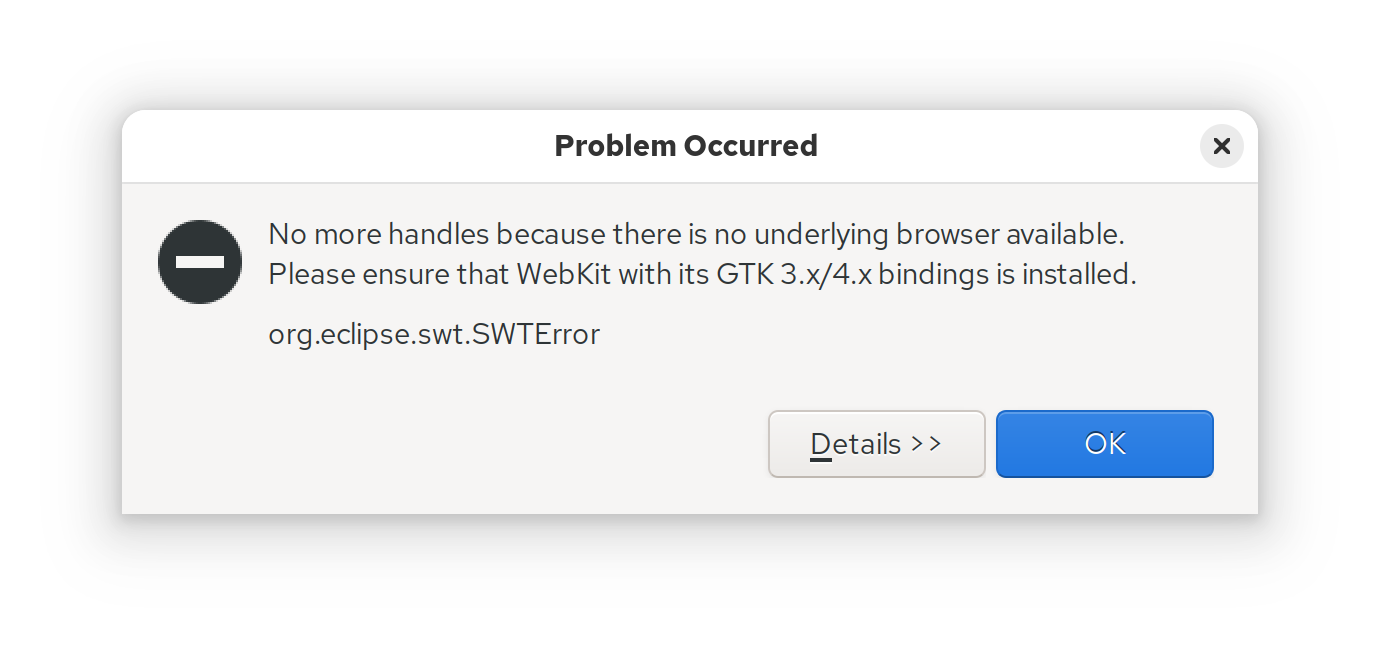
Cause of Error: Eclipse's internal browser (SWT Browser) requires the WebKitGTK component, but AlmaLinux 10 has removed WebKitGTK from the default repository (a design change in RHEL 10), causing SWT to not find a usable browser engine.
- Enable the EPEL repository (required)
sudo dnf install epel-release
sudo dnf config-manager --set-enabled crb # If prompted about missing dependencies
sudo dnf makecache
- Install WebKitGTK (core fix)
sudo dnf install webkit2gtk4.1 webkit2gtk4.1-devel
sudo dnf install gtk3 libXtst libXrender alsa-lib webkit2gtk4.1
sudo dnf install epel-release

sudo dnf config-manager --set-enabled crb

sudo dnf install webkit2gtk4.1 webkit2gtk4.1-devel
3. Fix Wayland Compatibility Issues
GDK_BACKEND=x11 ./eclipse -clean
AlmaLinux 10 uses Wayland by default. Some Eclipse SWT components may still behave better under X11.
Install more images and GTK dependencies:
sudo dnf install gdk-pixbuf2 gtk3 gtk4 librsvg2 -y
sudo ldconfig
Add image-related settings to eclipse.ini (recommended):
Edit /app/opt/eclipse/eclipse.ini, and add the following before -vmargs:
ini-Dorg.eclipse.swt.internal.gtk.cairoGraphics=true
-Dswt.autoScale=quarter # Or try integer / none
The splash image at Eclipse startup displays as a broken chain icon. This is due to a missing image loading module or incomplete SVG support (newer versions of Eclipse often use SVG or special formats for their splash images).
4. Install Required GTK and SWT Libraries
5. Install WebKitGTK Support
The Eclipse SWT Browser component depends on WebKitGTK. Without it, embedded browser views may fail to load.
6. Fix Missing Splash Images and Icons
vim eclipse.ini
-Dorg.eclipse.swt.internal.gtk.cairoGraphics=true
-Dswt.autoScale=quarter
Final Result
After installing OpenJDK 21, WebKitGTK, GTK image libraries, and forcing Eclipse to use X11, Eclipse started normally on AlmaLinux 10.
The splash screen loaded correctly, projects opened without SWT errors, and overall startup performance was significantly improved.
Explore More
› Redis maxmemory Explained: How to Limit Memory Usage and Prevent OOM Errors
› Nginx fastcgi_read_timeout Explained: Configuration, 504 Errors, and Best Practices